CoreDrive
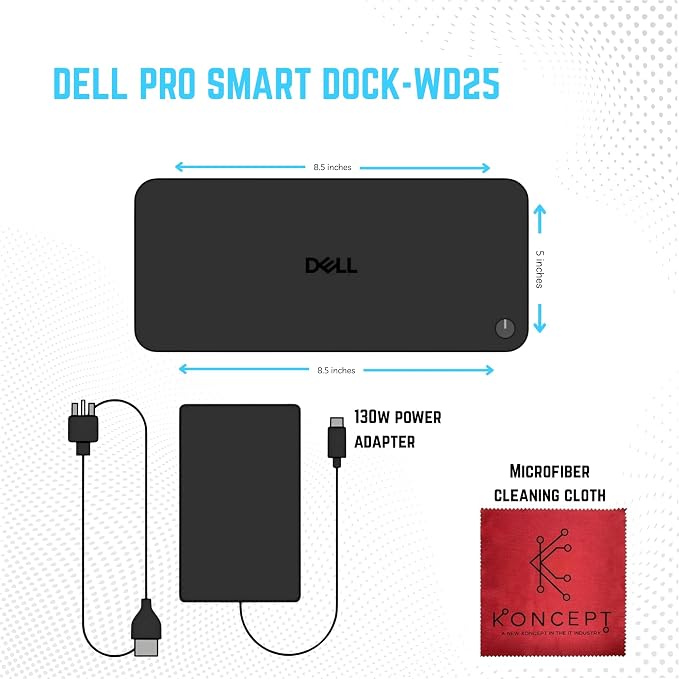
WD25 Dell Pro Dock USB-C Docking Station - with 100W Power Dual 4K Display Support HDMI DP & USB-C Cables - 3 Year Warranty
WD25 Dell Pro Dock USB-C Docking Station - with 100W Power Dual 4K Display Support HDMI DP & USB-C Cables - 3 Year Warranty
Couldn't load pickup availability
- [All-in-One Connectivity] - Enhance your workspace with versatile connection options ? includes 1x HDMI 2.1, 2x DisplayPort 1.4, and 1x USB-C multi-function display port. - [Powerful Charging Performance] - Supports up to 100W power delivery for Dell laptops and 96W for other USB-C devices - [Ultra Fast Networking] - Stay connected with the built-in 2.5GbE Ethernet port, offering faster, more stable, and secure wired internet connections compared to standard Gigabit ports. - [Multi-Port USB Hub] - Includes 4 x USB-A 3.2 Gen 2 ports and 1 x USB-C 3.2 Gen 2 for fast data transfer and powering peripherals.
Product description
Is the Dell WD25 compatible with all laptops?
Can the dock charge my devices even when my laptop is disconnected?
A hardware installation window appears when I connect the dock. Is that normal?
My connected devices stop working after a power loss. What should I do?
What if my displays don’t detect or flicker?
Is the Dell WD25 compatible with all laptops?
Yes, it supports most laptops with a USB-C or Thunderbolt 3/4 port that provides DisplayPort Alt Mode and Power Delivery. Works best with Dell laptops but is also compatible with HP, Lenovo, and MacBook models.
Can the dock charge my devices even when my laptop is disconnected?
Yes, the WD25 can charge phones or USB-powered accessories even if your computer is not connected ? as long as the dock’s AC adapter is plugged in.
A hardware installation window appears when I connect the dock. Is that normal?
Yes. When first connected, Windows automatically detects the dock and installs drivers. This is a normal plug-and-play setup process.
My connected devices stop working after a power loss. What should I do?
Disconnect the dock’s AC power for a few seconds, then reconnect it. This resets the power contract between your laptop and the dock.
What if my displays don’t detect or flicker?
Check that your laptop supports DisplayPort Alt Mode, ensure firmware is up to date, and use the original Dell cable and adapter supplied with the dock.
Share