CoreDrive
Waveshare 7inch HDMI LCD B for Various Systems Raspberry Pi/Raspberry Pi 3 Model B+ 800x480 Rev3.1 Capacitive Touch Screen LCD Display HDMI Interface.
Waveshare 7inch HDMI LCD B for Various Systems Raspberry Pi/Raspberry Pi 3 Model B+ 800x480 Rev3.1 Capacitive Touch Screen LCD Display HDMI Interface.
Couldn't load pickup availability
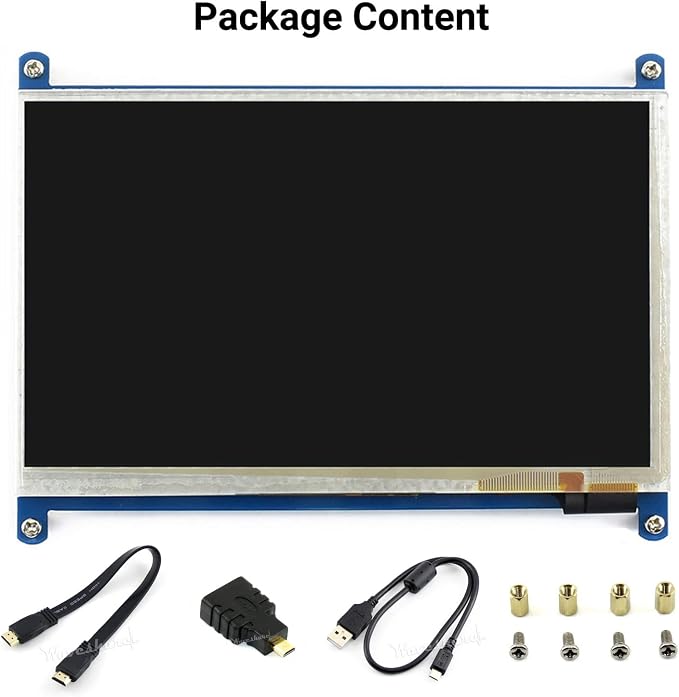
- 800x480 hardware resolution Capacitive touch control - Supports popular mini PCs such as Raspberry Pi, as well as general desktop computers - When works with Raspberry Pi, supports Raspbian/Ubuntu/Kali/Retropie/WIN10 IOT, driver free - When work as a computer monitor, supports Windows 10/8.1/8/7, five-points touch, and driver free - Backlight can be turned off to lower power consumption
Product description
WIKI: waveshare.com/wiki/7inch_HDMI_LCD_(B)?amazon
Introduction
Features
Working with PC
Working with Raspberry Pi
7 inch Capacitive Touch Screen LCD, HDMI interface, with a resolution of 800×480and a capacitive touch panel, which supports Raspberry Pi and can also be used as a computer monitor.
This LCD can support Windows 7/8/8.1/10/11 system.
How to use:
1) Turn on the backlight switch on the back of the LCD.
2) Connect the Touch interface of the LCD to the USB interface of the PC. Wait for a while, the windows will automatically recognize the touch function.
3) Connect the HDMI interface of the LCD to the HDMI interface of the PC.
Note: 1) When the computer is connected to several different displays at the same time, only this LCD can be used to control the cursor on the main display, so we recommended to set this LCD as the main display. 2) Some PCs do not support plug-and-play with HDMI devices. Generally, they can be used normally after restarting the system. 3) Some PCs may cause LCD flickering due to insufficient power supply through the USB interface. Generally, they can be used normally after connecting to an external 5V/2A power supply through the DC interface.
This LCD can support Raspberry Pi OS / Ubuntu / Kali and Retropie systems. When the LCD works on systems such as Raspberry Pi OS, the resolution must be set manually, otherwise, it will cause an abnormal display.
Please download the latest version of the image on the Raspberry Pi official website.
1) Download the compressed file to the PC, and unzip it to get the .img file.
2) Connect the TF card to the PC, use SDFormatter software to format the TF card.
3) Open the Win32DiskImager software, select the system image downloaded in step 1, and click‘Write’ to write the system image.
4) After the image has finished writing, open the config.txt file in the root directory of the TF card, add the following code at the end of config.txt, then save and quit the TF card safely.
5) Insert the TF card into the Raspberry Pi
6) Turn on the backlight switch on the back of the LCD.
7) Connect the Touch interface of the LCD to the USB interface of the Raspberry Pi.
8) Connect the HDMI interface of the LCD to the HDMI interface of the Raspberry Pi, power on the Raspberry Pi, and wait for a few seconds until the LCD displays normally.
Share