CoreDrive
waveshare 5inch Capacitive Touch AMOLED Display Compatible with Raspberry Pi 5/4B/3B+/3A+/2B/B+/A+/Zero/Zero W/WH/Zero 2W CM3+/4 960×544 Resolution HDMI Optical Bonding Supports Jetson Nano/Windows
waveshare 5inch Capacitive Touch AMOLED Display Compatible with Raspberry Pi 5/4B/3B+/3A+/2B/B+/A+/Zero/Zero W/WH/Zero 2W CM3+/4 960×544 Resolution HDMI Optical Bonding Supports Jetson Nano/Windows
Couldn't load pickup availability
- Provide online user manual, please check the manual carefully before using! - 5inch AMOLED, 960×544 resolution. 5-point capacitive touch control with tempered glass panel, hardware up to 6H. - When working with Raspberry Pi, support Raspbian / Ubuntu / Kali, and Retropie system, as well as general desktop computers. - When works with Raspberry Pi, supports Raspberry Pi OS / Ubuntu / Kali / Retropie system. - When works as a computer monitor, supports Windows 11/10/8.1/8/7. 3.5mm audio jack, supports HDMI audio output.
Product description
Introduction
Features
Working with Windows PC
Working with Raspberry Pi
Screen Saver
5inch AMOLED display, with a resolution of 960×544 and a capacitive touch panel, which supports Raspberry Pi and can also be used as a computer
When working with PC, 5inch HDMI AMOLED can support Windows 7/ 8/ 8.1 /10/11 OS
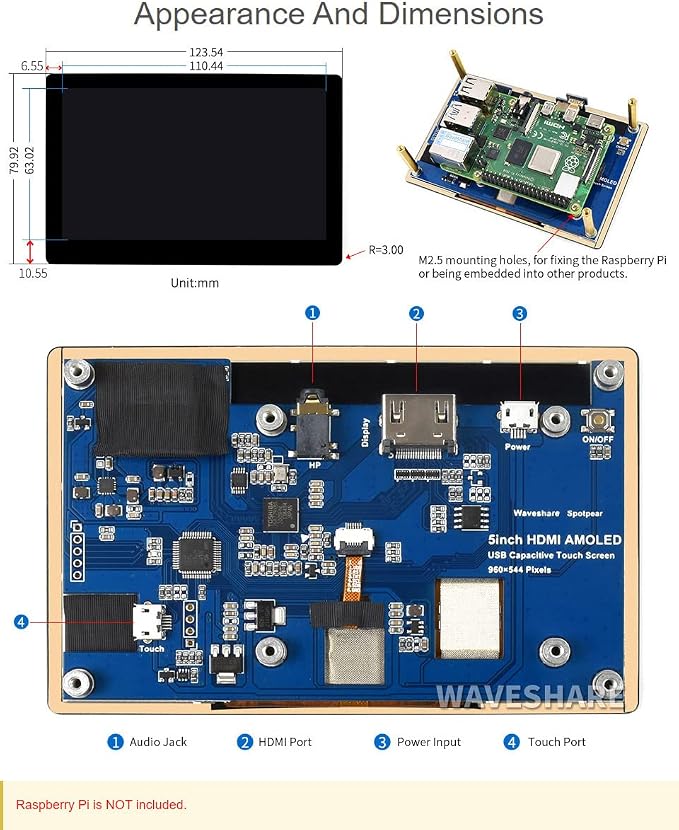
1. Connect the TOUCH interface of the LCD to the USB interface of the PC. Wait for a while, the windows will automatically recognize the touch function.
2. If you use HDMI, you need to connect the HDMI interface of LCD to the HDMI port of the PC. About 10s later, you can see the LCD display properly. If you need to output sound, you can insert a 3.5mm earphones to HP ports.
Note:
1) When the computer is connected to several different displays at the same time, only this LCD can be used to control the cursor on the main display, so we recommended to set this LCD as the main display.
2) Sometimes, USB ports of PC have not enough power to power 5inch HDMI AMOLED, in this case, you can connect external 5V/2A power adapter to DC interface of 5inch HDMI AMOLED.
When working with Raspberry Pi, 5inch HDMI AMOLED can support various systems like Raspberry Pi OSUbuntu Mate/Kail/Retropie/WIN10 IoT. Herein we take Raspbain as an example.
When AMOLED works on systems such as Raspberry Pi, the resolution must be set manually, otherwise it will cause abnormal display
Please download the latest version of the image on the Raspberry Pi official website.
1) Download the compressed file to the PC, and unzip it to get the .img file.
2) Connect the TF card to the PC, use SDFormatter software to format the TF card.
3) Open the Win32DiskImager software, select the system image downloaded in step 1, and click‘Write’ to write the system image.
4) After the image has finished writing, open the config.txt file in the root directory of the TF card. Add the following code at the end of config.txt, then save and quit the TF card safely.
5) Save and eject the SD card. Plug the card to your Raspberry Pi
6) Connect Touch interface of LCD to one USB port of Raspberry Pi
7) Connect HDMI interface of LCD to HDMI interface of Raspberry Pi
8) Power on Raspberry Pi, and wait for a few seconds until the LCD displays normally.
AMOLED screen has many advantages like high contrast, wide color range, wide view angle, and so on. However, it is easy to face a burn-in problem if displaying the same content for a long time.
In this case, we recommend you set a screen saver and do not let the AMOLED display the same static image for a long time (cannot longer than 1h).
When working for a long time, make sure to add a screen saver, execute the following command to install the corresponding screen saver application:
sudo apt-get install xscreensaver
Share