CoreDrive
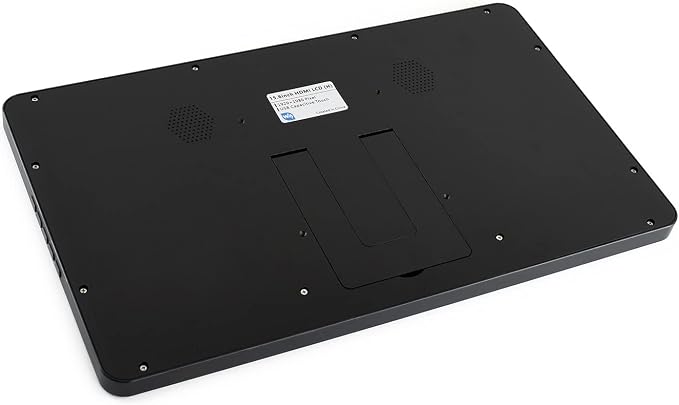
Waveshare 15.6 inch HDMI LCD (H) (with case) IPS Display 1920x1080 Resolution Capacitive Screen with Toughened Glass Touch Panel Supports Raspberry Pi/Jetson Nano/PC/Game Consoles
Waveshare 15.6 inch HDMI LCD (H) (with case) IPS Display 1920x1080 Resolution Capacitive Screen with Toughened Glass Touch Panel Supports Raspberry Pi/Jetson Nano/PC/Game Consoles
Couldn't load pickup availability
- 15.6 inch IPS screen, 1920x1080 hardware resolution. Toughened glass capacitive touch panel. Up to 6H hardness toughened glass panel. Up to 10-points touch(depending on the operating system) - When used with Raspberry Pi, supports Raspberry Pi OS/ Ubuntu/Kali/WIN10 IoT/Retropie, the resolution must be set manually, otherwise, it will cause an abnormal display, for more detailed information, please read product page - When used as a computer monitor, supports Windows 11/10/8.1/8/7, 10-points touch, driver free. For Jetson Nano, supports Ubuntu, single point touch, driver free. For Game Console, Supports Xbox360, PS4, Switch... - Multi-languages OSD menu, for power management, brightness/contrast adjustment, etc. 3.5 mm audio jack, supports HDMI audio output. Embedded ferrite Hi-Fi speaker. Comes with 55° tilt angle stand - 100 x 100 mm spacing mounting holes (M4 screw hole) for general wall mount. Also supports VGA input (specific cable is required and should be purchased separately)
Product description
Features
Working with PC
Working with Raspberry Pi
Learn more: af0.cn/n9lNX
This product supports Windows 11/10/8.1/8/7 OS.:
1. Connect 12/1A power adapter to the DC interface of LCD, after connecting the backlight will light.
2. Connect the TOUCH interface of LCD to the USB interface of PC. Waiting for a moment, The touch will be recognized by Windows automatically
3. If you use the HDMI interface, you need to connect the HDMI interface of LCD to the HDMI port of PC. After 5s later, you can see that the LCD display properly. If you need the audio, you can insert a 3.5mm earphones to HP ports.
4. If you want to use VGA interface, you need to connect the VGA interface of LCD to PC's VGA ports by Mini HDMI to VGA Cable
Note
1) If multi-screen are connected to one PC at the same time, you can only control the cursor by this LCD, so please set the LCD as the main screen.
2) Some of PC cannot support the HDMI screen Hot Plug. In this case, you can try to reboot the system to make the LCD display normal.
3) HP audio output only works while using HDMI communication
4) Mini HDMI to VGA Cable is necessary and need to be purchased separately if you use VGA communication.
This model can support Raspberry Pi OS / Ubuntu / Kali and Retropie systems. When working with Raspberry Pi, the resolution must be set manually, otherwise, it will cause an abnormal display. For more detailed information, please read the following section.
1. Download the Raspbian image from Raspberry Pi web site.
2. Connect the TF card to your PC and format it by SDFormatter software.
3. Write the .img file to your TF card by Win32DiskImager software. Select the system image downloaded in step 1, and click‘Write’ to write the system image.
4. After the image has finished writing, open the config.txt file in the root directory of the TF card, add the following code at the end of config.txt, then save and quit the TF card safely.
You must make sure that there are no spaces on either side of the equal sign.
5. Connect the Touch interface of LCD to USB port of Raspberry Pi
6. Connect the HDMI interface of LCD to HDMI port of Raspberry Pi
7. Save and connect the TF card to your Pi then power up.
Share