- Time-Tested & Reliable: Our longest-running dual-screen extender, trusted since 2022 for stable, straightforward multi-monitor setups
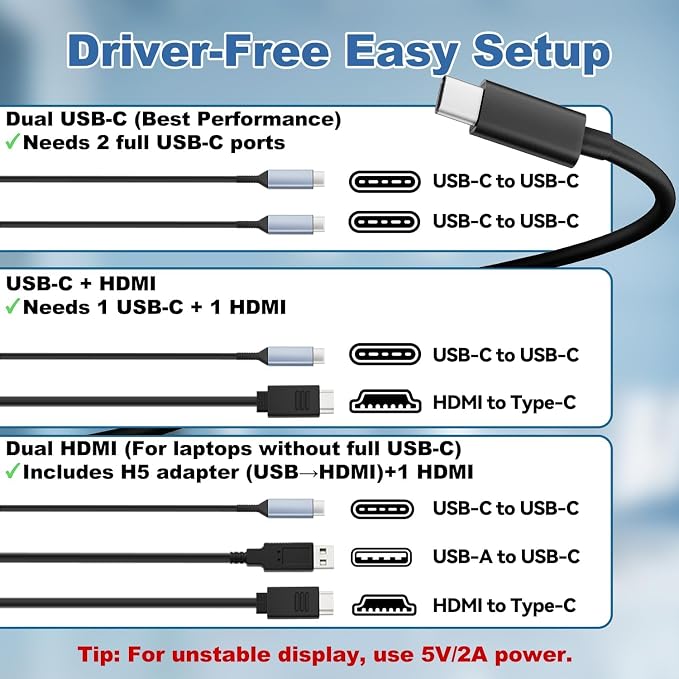
- Clear Compatibility: Fits 13"?16" laptops. Requires either two full-function USB-C ports, or one full-function USB-C + HDMI + USB-A, or two HDMI + two USB-A ports (docking station may be needed). Not compatible with MacBook Air M1/M2
- Easy Setup: Plug and play ? no drivers needed. For combo use, connect USB-A before HDMI. If the signal is unstable, try external power
- Solid Visuals, Built-In Essentials: Dual 12" Full HD IPS displays with 178° viewing angles ? perfect for working on spreadsheets, managing documents, and multitasking. Includes built-in speakers, brightness control, and eye-care mode for long hours of use
- Portable & Flexible: Lightweight enough to travel with, sturdy enough for fixed desks. Folds flat into a laptop bag and rotates up to 210° for sharing screens in meetings
- Support That Stays With You: Day one or year three, real support is just an email away. Compatibility questions or setup help? We’re here to make sure it works for you
Product description
Pre-Purchase Checklist
Before purchasing, make sure your setup is compatible with our portable laptop monitor:
Operating Systems: Windows, Chrome OS, macOS (limited support for Mac M1/M2 chips)
Laptop Size: Works best with 13"-16" laptops
Required Ports:
MacBook Compatibility: Compatible with M1 Pro and M1 Max chips (not compatible with M1/M2 base models)
Setup Instructions
Follow these easy steps to get started:
Step 1: Identify Your Laptop Ports
Check if your laptop has two full-function USB-C ports (for data, video, and power transfer). If not, you'll need HDMI and USB-A connections, or use a docking station/hub.
Step 2: Connect the Monitor
Step 3: Adjust Display Settings
Use your laptop’s display settings to extend or mirror the screens. Adjust brightness, volume, and rotate up to 210° with the built-in controls.
Troubleshooting Guide
If you encounter any issues, try the following: