CoreDrive
Pixio PX274 Prime 27 inch IPS Panel 75 Hz Refresh Rate WQHD 2560 x 1440 Resolution Wide Screen Display Adaptive Sync Productivity Gaming Hybrid Monitor
Pixio PX274 Prime 27 inch IPS Panel 75 Hz Refresh Rate WQHD 2560 x 1440 Resolution Wide Screen Display Adaptive Sync Productivity Gaming Hybrid Monitor
Couldn't load pickup availability
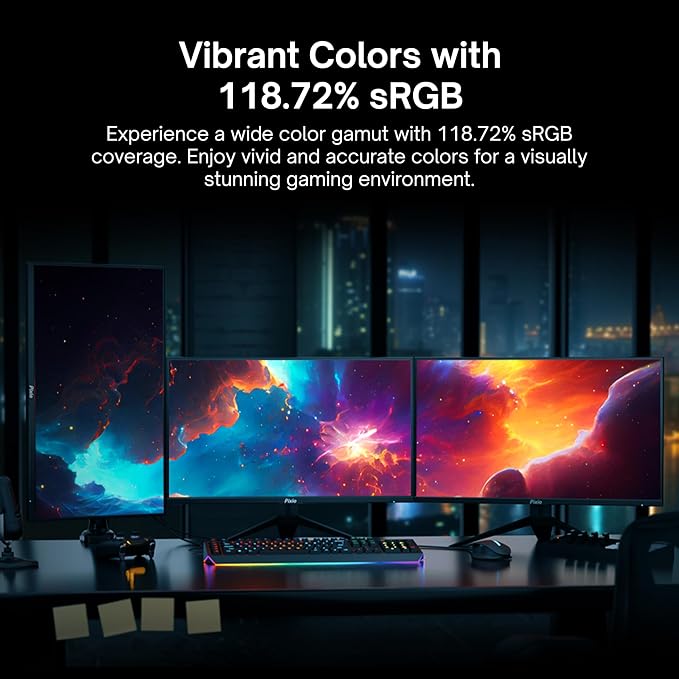
- IPS PANEL - Experience true-to-life colors and brightness so that you can enjoy your content the way it is meant to be seen, with beautiful, vibrant colors, and brightness - 27 INCH 1440P WQHD DISPLAY - Pixio PX274 Prime monitor offers the perfect balance of productivity and entertainment. With its high resolution, wide viewing angles, and accurate colors, it is ideal for both work and play. - 3-SIDED BEZEL-LESS DISPLAY - With its ultra-thin bezels, the display stretches from edge to edge for a maximized viewing area and a minimalist aesthetic. - CONNECTIVITY - comes with a variety of connectivity options, including one DisplayPort 1.2 port and two HDMI 1.4 ports. This gives you the flexibility to connect your monitor to a variety of devices, such as laptops, desktops, gaming consoles, and streaming devices. - THE ULTIMATE PRODUCTIVITY MONITOR - With its bright 27-inch WQHD 1440p resolution 500 nit(max) IPS panel and 75Hz refresh rate, it is perfect for both work and light gaming. The high resolution and wide viewing angles of the IPS panel make it easy to see multiple windows and applications at the same time and the 75Hz refresh rate makes it ideal for video editing and animation.
Product description
Technical Specifications
My monitor shows No Signal then goes into power saving mode. How do I fix this?
How do I turn off/on my monitor?
Where can I find firmware updates for my monitor?
How do I set my resolution or refresh rate?
My monitor is showing a black screen, but the power LED is blue. What’s wrong?
My monitor shows No Signal then goes into power saving mode. How do I fix this?
There is a shortcut key that allows you to enter the input selection menu, even when the monitor is in Power Saving mode. The key is different for each model, so please consult the manual to find the input selection shortcut key for your monitor.
How do I turn off/on my monitor?
There is usually a jog button behind the monitor or a power button along the bottom-bezel of the monitor. While it is off, pressing the button once will turn on the monitor. To turn it off, press and hold the button for about 3-5 seconds.
Where can I find firmware updates for my monitor?
Check our website for monitor firmware updates. If not found, contact customer support. Do not use another model's firmware to avoid issues we cannot assist with.
How do I set my resolution or refresh rate?
Every device you connect the monitor to should have some sort of Display Settings where you can change the refresh rate or resolution to what the monitor supports. Please contact customer support if you need further assistance.
My monitor is showing a black screen, but the power LED is blue. What’s wrong?
Swap display cables and try different ports on your computer. Test the monitor on various devices. If the issue persists, contact our customer support for assistance.
Share