CoreDrive
Machine-Ya USB C to Dual HDMI Adapter 4K@60hzUSB C Dual Monitor Adapter with USB 3.0 100W PD Type C to Dual HDMI Splitter Extend Display for Chromebook MacBook Laptop HP...
Machine-Ya USB C to Dual HDMI Adapter 4K@60hzUSB C Dual Monitor Adapter with USB 3.0 100W PD Type C to Dual HDMI Splitter Extend Display for Chromebook MacBook Laptop HP...
Couldn't load pickup availability
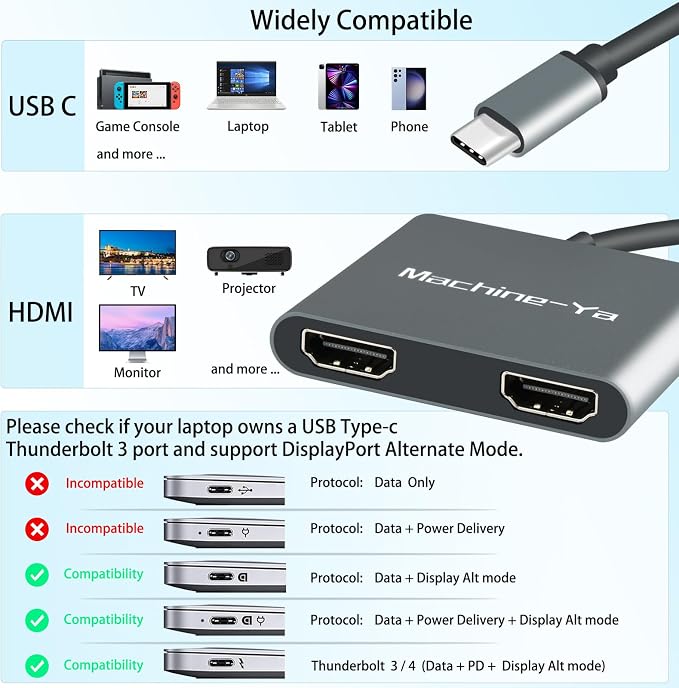
- 【USB 3.0 Fast Transfer】The USB interface supports data transfer at rates up to 5Gbps. It is compatible with many peripherals: USB flash drive, portable hard drive, mouse, keyboard, printer, digital camera, etc. The 4-in-1 adapter can connect multiple devices at the same time to solve the problem of insufficient interfaces. - 【Fast PD charging】 The PD 100W Fast Charge interface can provide charging for most USB C ports on laptops, tablets and phones. High-speed, stable charging without compromising its performance or service life. No need to worry about power outages, so you can better enjoy entertainment/office fun. - 【Immersive 4K Vision】This adapter uses single HDMI port 4K@60Hz for immersive viewing at high resolution. Use the dual HDMI port resolution 4K@30Hz (3840x2160@30Hz) to experience the HD dual screen display, ideal for efficient office work. Tip: If you want to get 4k resolution, make sure your device supports 4k and uses an HDMI cable version 2.0 or higher. - 【Flexible Display Mode】The Windows operating system supports Mirror Mode and Extend Mode, such as ABC, ABB, ABA, and AAA Modes. Note: Mac OS/iPad OS does not support MST technology (ABC Mode), and when used with Mac OS or iPad OS, you will get 2 mirror displays (ABB and AAA Modes). The Android OS only support the Mirror Mode (AAA Mode). - 【Easy Plug and Play】This USB C to dual HDMI Adapter is plug and play. No additional drivers/software required to quickly expand your screen space. Note: Not available on all USB-C laptops, make sure your laptop or PC supports [Thunderbolt 3/4] or DP ALT mode. - 【Wide Compatibility】USB C to Dual HDMI Adapter 2 displays work well for Thunderbolt 3/4 compatible devices, and the adapter is compatible with Linux, Windows, Mac OS, and Android systems. It supports tape c devices including laptops, tablets and mobile phones. For example: MacBook 12 ",MacBook Pro 2016-2019,MacBook Air 2018-2019, iPad Pro2018, Nintendo Switch, Huawei, HP, Dell XPS, Samsung Galaxy, etc. - 【What You Get】Type C to HDMI Dual Display Adapter x1, user manual x1, worry-free warranty for 1 year and lifetime technical support. Dual HDMI interfaces can maximize the potential of your device, multi-task, and increase productivity. If you have any questions, please feel free to give us feedback, we will do our best to help you solve the problem.
Product description
Support 4K@60HZ UHD more vivid display experience
"Setting" → "Display" → click the "mirror display" box to switch to Extend mode → then you can drag a window of website/movie to the rightest side of your desktop screen until it disappear on your desktop screen and show up on the external monitor screen.
( Important Note: As Apple company itself limited, for Mac OS devices use in extend mode, the image on the two external screens will be the same.)
Right-click desktop→ select Intel display Settings → pop-up Settings screen select display→ select multi-screen display→ expand the desktop
(If the display 3 is not display, please to manually select the display→click apply confirm can set OK).
Right click desktop > Graphics Settings > Select One or More Active Displays.
For Windows/Mac OS/Android/Mobile phone
Please supply power for Samsung cellphone when setting Samsung DeX Mod.
For Windows/Mac OS
Does not support 2 external displays show different images for Apple computers in extend mode.
For Windows
Only Windows laptops support Extend & MST mode simultaneously (Triple display).
Why is the screen flickering or going black?
1. Insufficient Power Supply
Some devices may have a weaker power supply capacity for the docking station, which can lead to insufficient power and screen flickering. Therefore, it is necessary to connect the charger for power supply when using it.
2. Check HDMI Port Connection
Because the HDMI interface has no locking mechanism, it is easy to cause the screen to blink due to poor contact. Check that the HDMI cable is firmly inserted into the port, and try to re-insert it to ensure good contact.
3. HDMI Cable Selection
Avoid using HDMI cables larger than 5 meters; Avoid using HDMI to VGA and HDMI to DP cables. Longer cables may result in more significant signal attenuation, mainly due to inadequate impedance and shielding. In addition, the use of other adapter cables constitutes a secondary conversion, which is likely to affect transmission power and stability.
4. Display Compatibility Issues
You can try replacing the display to see if the flickering issue persists, as some displays with weaker signal reception may exhibit flickering.
Share