CoreDrive
HyperDrive 10-in-2 USB C Dock Dual Monitor HDMI 4K@60Hz 60W USBC Power Delivery Gigabit Ethernet USB-C Hub Adapter for MacBook Pro with M1 Pro/Max 2021 MacBook Pro 2016-2019 MacBook Air (Gray)
HyperDrive 10-in-2 USB C Dock Dual Monitor HDMI 4K@60Hz 60W USBC Power Delivery Gigabit Ethernet USB-C Hub Adapter for MacBook Pro with M1 Pro/Max 2021 MacBook Pro 2016-2019 MacBook Air (Gray)
Couldn't load pickup availability
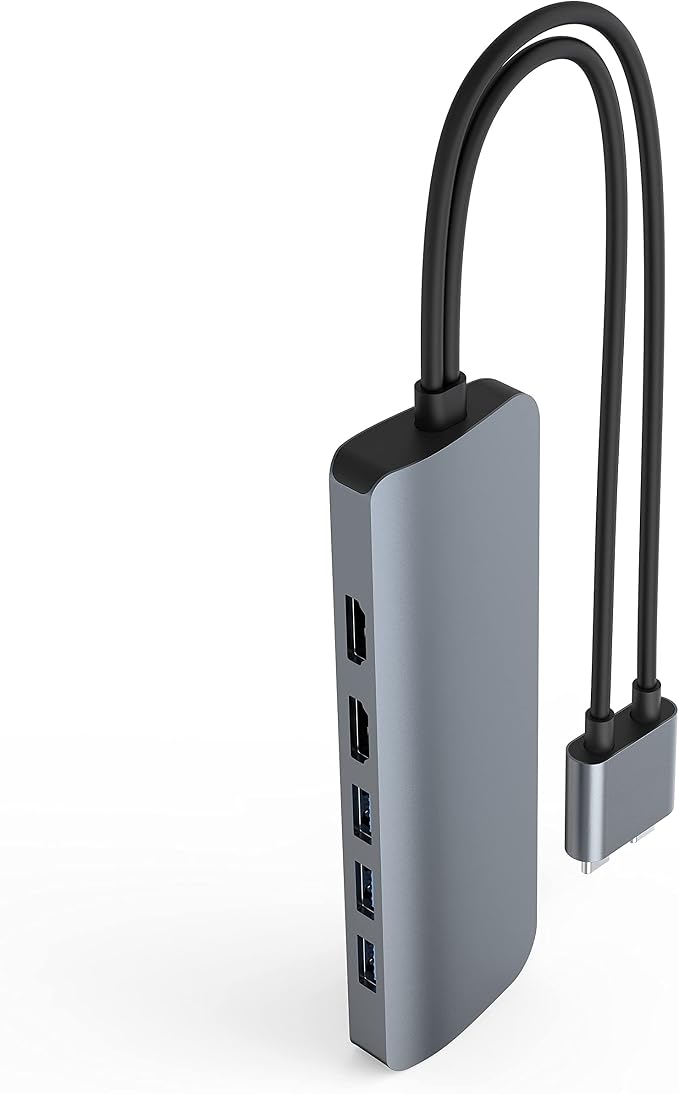
- [ 10-Port USB-C Hub for MacBook Pro/Air ] Turns two USB-C ports into 10 ports with 2 x 4K 60Hz HDMI, 3 x USB-A, Gigabit Ethernet, MicroSD/SD, 60W USB-C power delivery, and a 3.5mm audio jack.
Product description
HYPERDRIVE 10-in-2 USB-C Hub - Universal USB-C hub for MacBook, Chromebook, and PC.
How to connect multiple monitors to 10-in-2 USB-C Hub(Note: This model can only extend to one additional display for M1 Macbook.)
FAQ for HYPERDRIVE 10-in-2 USB-C Hub
2020/2019/2018/2017/2016 MacBook Pro
2020/2018 MacBook Air
2015 MacBook (12 inch)
2020/2019/2018 iPad Pro
2020 iPad Air
Windows laptop with Thunderbolt 3 or USB-C*
Chrome OS laptop with USB-C*
Any other device with USB-C*
* Requires DisplayPort over USB-C + charge + data
USB-A ports will not support Apple SuperDrive or charge iPads. Both USB-C cables must be plugged into your computer to extend to more than one display.
To connect two extended displays, both USB-Cs must be plugged into the host device. If only one is plugged in, the Viper will only extend to one additional monitor. Both cables should either be HDMI or an active converter to HDMI.
Please Note: This model can only extend to one additional display for M1 Macbook.(If you need to extend two displays for M1 Macbook ,please view our model No.: HDM1H or HDM1)
For Windows devices or devices that use Chrome OS or Linux, you would need to check if your computer is DisplayPort 1.4 compatible through the USB-C port. Otherwise, you could only use the direct USB-C to HDMI line on the HyperDrives to get 4K60Hz.
Enhance your productivity and gaming with dual 4K 60Hz HDR monitor support (requires 2 x USB-C connections).*MacBook M1 can only support one extended monitor.
Get the most reliable and fast internet connection for work, play, and video conferencing.
Additional MicroSD and SD memory card transfer data or files at speed up to 104 Mb/s slots for quick data.
Connect your USB-A accessories with your modern USB-C device. Get 3 high-speed USB 3.1 Gen 1 capable of 5Gb/s transfer speed.
Charge while you work or play, with USB-C pass-through charging. * Requires DisplayPort over USB-C + charge + data.
If only one is plugged in, the USB-C Hub will only extend to one additional monitor. Both cables should either be HDMI or an active converter to HDMI.
*How do the cables work?
The Viper Hub utilizes two cables, one being a direct USB-C to HDMI, and the other running the rest of the Hub. The picture below illustrates which cable works with which.
*How to connect multiple monitors to 10-in-2 USB-C Hub
To connect two extended displays, both USB-Cs must be plugged into the host device. If only one is plugged in, the Viper will only extend to one additional monitor. Both cables should either be HDMI or an active converter to HDMI.
*Is HyperDrive compatible with the new Apple M1 chip? How many displays can I connect?
Our HyperDrives are compatible with the latest Mac computers with the new M1 chip,but this model can only extend to one additional display for M1.The USB 4/Thunderbolt 3 ports are backwards compatible, allowing them to read devices like on previous Intel Macs.
Mac computers utilizing the M1 chip can only extend to one additional display. This is due to limitations in these models, as opposed to Intel based Macs that can extend to two displays when utilizing this dual USB-C HyperDrives. The only exception to this is the Mac Mini, which can extend to two displays, but only when using the built-in HDMI port as one of the displays.
*Ethernet is not detected
If the Ethernet is not detected, it's most likely the USB-C connection to computer is not securely connected.Please do the trouble shooting steps below:1.) Connects the second USB-C cable to computer securely2.) Look at the Ethernet port, the activity LED should be running.3.) Once the Ethernet port is running, then plug in the other USB-C cable to computer.
If you having Ethernet, Self assigning IP address and other network issues OR Connectivity or charging issues using HyperDrive on your Mac/Windows, tell us directly at Amazon messages so we can fix it quickly.
Share