CoreDrive
15.6 Inch Laptop Screen Extender Triple Monitor for 11-18 Inch Laptops FHD 1080P IPS Foldable Display with 360° Rotation USB-C (DP Alt Mode) and HDMI for Windows and Mac
15.6 Inch Laptop Screen Extender Triple Monitor for 11-18 Inch Laptops FHD 1080P IPS Foldable Display with 360° Rotation USB-C (DP Alt Mode) and HDMI for Windows and Mac
Couldn't load pickup availability
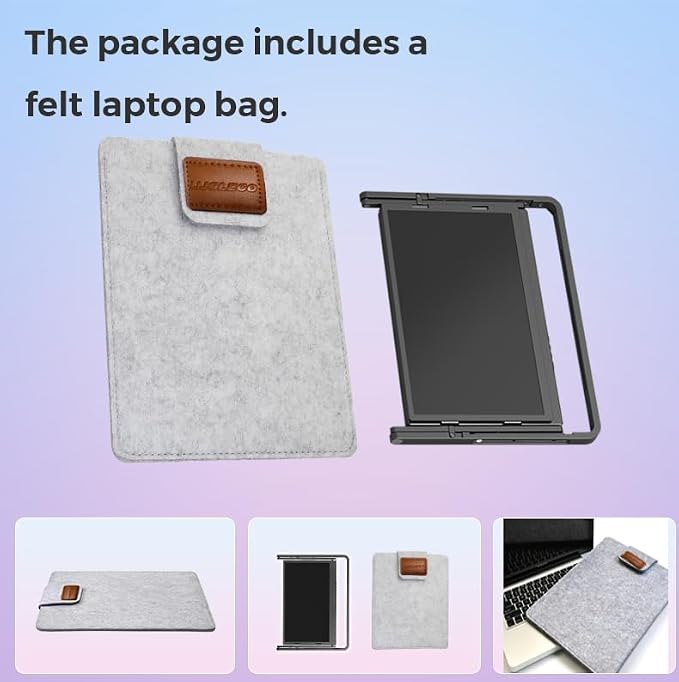
- ?? EXPAND INTO A LARGER WORKSPACE FOR DEMANDING TASKS - Three 15.6-inch screens give you more room to keep reports, dashboards, charts, documents, and communication tools visible at once, making long work sessions feel more organized and efficient. - ?? BUILT FOR CODING, ANALYSIS, TRADING, AND REMOTE WORK - A better fit for users who need to compare information side by side and work across multiple applications for extended periods, with a desktop-style layout that supports focused multitasking. - ? FLEXIBLE CONNECTION MODES ? ① Single USB-C to USB-C (requires DP Alt Mode); ② USB-C + HDMI combo; ③ USB to USB-C + HDMI combo; compatible with major Windows laptop brands and MacBook M1/M2/M3/M4. (Note: Driver installation required; USB flash drive with driver included in the box.) - ?? 360° ROTATION HELPS YOU SWITCH BETWEEN SOLO WORK AND SHARED VIEWING - Adjust the side screens for private work, collaborative discussion, or presentation scenarios. The foldable structure also makes it easier to reposition the setup between home desks, office spaces, and temporary workstations. - ? 12-MONTH WARRANTY + 24/7 SUPPORT ? Every unit is backed by a full 12-month warranty and a responsive support team that replies within 24 hours. Package includes: 1× Triple monitor unit, 1× USB-C to USB-C power cable, 1× USB-C to USB-C data cable,1× USB-A to USB-C data cable, 1× HDMI to Mini-HDMI cable, 1× 65W PD power adapter, 1× USB driver flash drive, 1× user manual. 1× felt protective sleeve.
Product description
LIJGLECO 15.6-Inch Triple-Screen Workspace for Demanding Work
Drivers & System Compatibility FAQs
Package List
The LIJGLECO 15.6-inch triple-screen extender is designed for users who need a larger visual workspace for reports, research, documents, and day-to-day multitasking. By expanding your laptop into a more desk-ready setup, it helps keep essential tasks visible and easier to manage throughout the workday.
The LIJGLECO 15.6-inch triple-screen extender is equipped with three Full HD displays to provide a larger and clearer viewing area for documents, reports, spreadsheets, and day-to-day multitasking. With IPS display technology, it delivers vivid color and consistent clarity, helping users view more content comfortably and manage multiple tasks more efficiently.
Please check laptop size, port compatibility, and driver installation support before purchase. This screen extender is designed for 11" to 18" laptops and supports multiple connection methods based on your device’s available ports. Reviewing these requirements in advance helps ensure a smoother setup experience.
The LIJGLECO 15.6-inch triple-screen extender creates a larger visual workspace for users who need to manage multiple windows, compare information side by side, and stay focused during demanding tasks. By expanding your laptop into a more desk-ready setup, it supports clearer task organization, smoother multitasking, and more efficient day-to-day work.
Q1: My Mac shows only 1?2 screens after connecting, or displays the error "USB display device not connected." How do I fix this?
A: Both symptoms are typically caused by incorrect Screen Recording permission settings on macOS. Please follow these steps:
Open System Settings (macOS Ventura and later) or System Preferences (older macOS), then go to Privacy & Security.
Select Screen Recording and confirm that the driver for this product has been granted permission.
Turn off the Screen Recording permission for the driver, wait 5 seconds, then turn it back on.
Disconnect the device, wait 10 seconds, then reconnect and check if all three screens display correctly.
Q2: The screen flickers after connecting the power adapter. What causes this and how do I fix it?
A: Screen flickering is usually caused by unstable power delivery. Please work through the following steps:
Confirm you are using the original 65W power adapter included in the product package. Third-party or lower-wattage chargers may not deliver stable power.
Check that the power cable is firmly and securely connected to both the adapter and the device port ? a loose connection can also cause flickering. Try a different power outlet or power strip to rule out issues with the wall socket.
Q3: The driver is installed on my Windows PC, but the screen shows nothing when connected via USB-C or USB-A. What should I do?
A: A full device restart is required to completely activate all driver functions after installation. Please follow these steps:
After driver installation, perform a full restart of your Windows device . Once restarted, reconnect the screen cables and check whether all three screens are now displaying correctly. If screens are still not showing, try uninstalling and reinstalling the driver
Q4: The middle screen displays incompletely after connecting to a Mac. How do I fix this?
A: Incomplete display on the middle screen is typically caused by a mismatch between your Mac's default screen ratio and the external display (when the laptop screen is not standard 16:9). To fix this: press the Settings button on the external screen, locate the display option "IMAGE AUTO ADJUST" for the middle screen, and apply the calibration. The screen will then display all content in full.
1:Exquisite packaging box*1
2:Portable monitor*1
3:USB-C to USB-Cpower cable*1
4:USB-C to USB-C cable*1
5:USB-A to USB-C cable*1
6:HDMI to mini HDMI cable*1
7:PD power adapter(65W)*1
8:User manual*1
9:felt protective sleeve*1
10:U Disk with drivers*1
Compatibility Verification
Confirm that your laptop or docking station is equipped with USB-C/HDMI ports and matches the corresponding interfaces on the portable monitor.
Share