CoreDrive
14 Inch Laptop Screen Extender Portable Triple Monitor for 11-17 Inch Laptops 1920x1200 IPS Foldable Display with 360° Rotation USB-C (DP Alt Mode) and HDMI for Windows and Mac
14 Inch Laptop Screen Extender Portable Triple Monitor for 11-17 Inch Laptops 1920x1200 IPS Foldable Display with 360° Rotation USB-C (DP Alt Mode) and HDMI for Windows and Mac
Couldn't load pickup availability
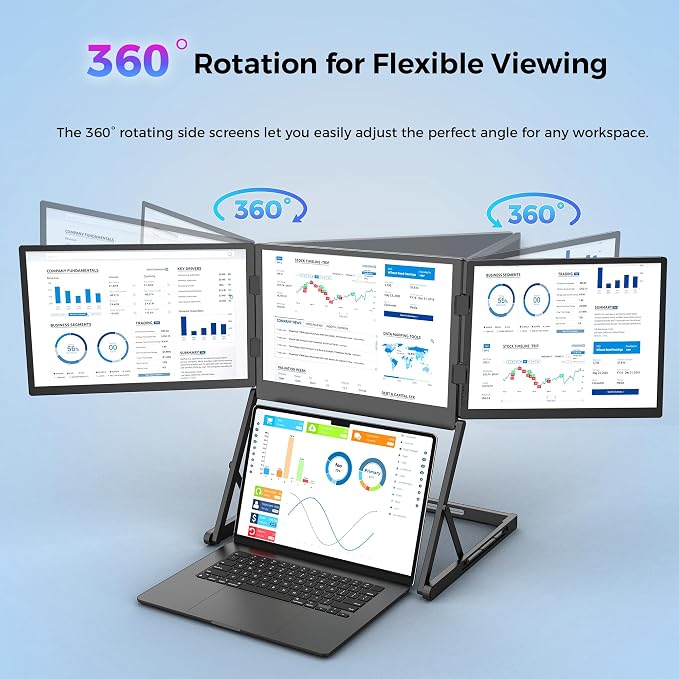
- ?? TRIPLE 14-INCH 1920x1200 IPS SCREENS IMPROVE DAILY WORK EFFICIENCY - Three 14-inch displays create a more space-efficient setup while giving you extra vertical room for documents, spreadsheets, browsers, and code compared with a more crowded single-screen workflow. - ?? A PRACTICAL FIT FOR TRAVEL, SMALLER DESKS, AND MOBILE PRODUCTIVITY - Designed for work on the go, shared spaces, dorm desks, and flexible office environments where a compact footprint and adaptable setup are especially useful. - ?? FOLDABLE STRUCTURE ADAPTS WELL TO DIFFERENT WORK LOCATIONS - The foldable design and 360° rotating side screens support use across cafes, home offices, co-working tables, and presentation settings, making the setup easier to reposition across work environments. - ? FLEXIBLE CONNECTION MODES ? ① Single USB-C to USB-C (requires DP Alt Mode); ② USB-C + HDMI combo; ③ USB to USB-C + HDMI combo; compatible with major Windows laptop brands and MacBook M1/M2/M3/M4. (Note: Driver installation required; USB flash drive with driver included in the box.) - ? 12-MONTH WARRANTY + 24/7 SUPPORT ? Every unit is backed by a full 12-month warranty and a responsive support team that replies within 24 hours. Package includes: 1× Triple monitor unit, 1× USB-C to USB-C power cable, 1× USB-C to USB-C data cable,1× USB-A to USB-C data cable, 1× HDMI to Mini-HDMI cable, 1× 35W PD power adapter, 1× USB driver flash drive, 1× user manual.
Product description
Mac shows only 1?2 screens after connecting, or displays the error "USB display device not connected." How to fix?
The screen flickers after connecting the power adapter. What causes this and how do I fix it?
The driver is installed on my Windows PC, but the screen shows nothing when connected via USB-C or USB-A. How to fix?
The middle screen displays incompletely after connecting to a Mac. How do I fix this?
Mac shows only 1?2 screens after connecting, or displays the error "USB display device not connected." How to fix?
Open System Settings (macOS Ventura and later) or System Preferences (older macOS), then go to Privacy & Security.
Select Screen Recording and confirm that the driver for this product has been granted permission.
The screen flickers after connecting the power adapter. What causes this and how do I fix it?
Confirm you are using the original 35W power adapter included in the product package. Third-party or lower-wattage chargers may not deliver stable power.
The driver is installed on my Windows PC, but the screen shows nothing when connected via USB-C or USB-A. How to fix?
After installing the driver, restart your Windows device. Reconnect the screen cables and check if all three screens display correctly. If not, reinstall the driver.
The middle screen displays incompletely after connecting to a Mac. How do I fix this?
press the Settings button on the external screen, locate the display option "IMAGE AUTO ADJUST" for the middle screen, and apply the calibration. The screen will then display all content in full.
Share